No More Phone-Tag Troubleshooting: Bytedesk Remote Assist Lets Agents Fix Issues Right in the Chat Window

"My software won't open, can you take a look?" Behind that sentence usually lies fifteen minutes of phone guidance: asking the customer to describe what's on screen, hunting for a button buried three menus deep, trading screenshots of error messages back and forth. The customer gets tired of explaining, the agent gets tired of guessing — and the problem may still be unsolved.
What if the agent could simply see the customer's screen — and, with the customer's permission, take over for a moment? Many issues would be resolved in minutes.
That's exactly what the new Remote Assist feature in Bytedesk does: an agent clicks one button in the chat window and can watch the customer's screen in real time; after the customer clicks "Allow" twice, the agent can remotely operate the keyboard and mouse — see it, fix it, done.
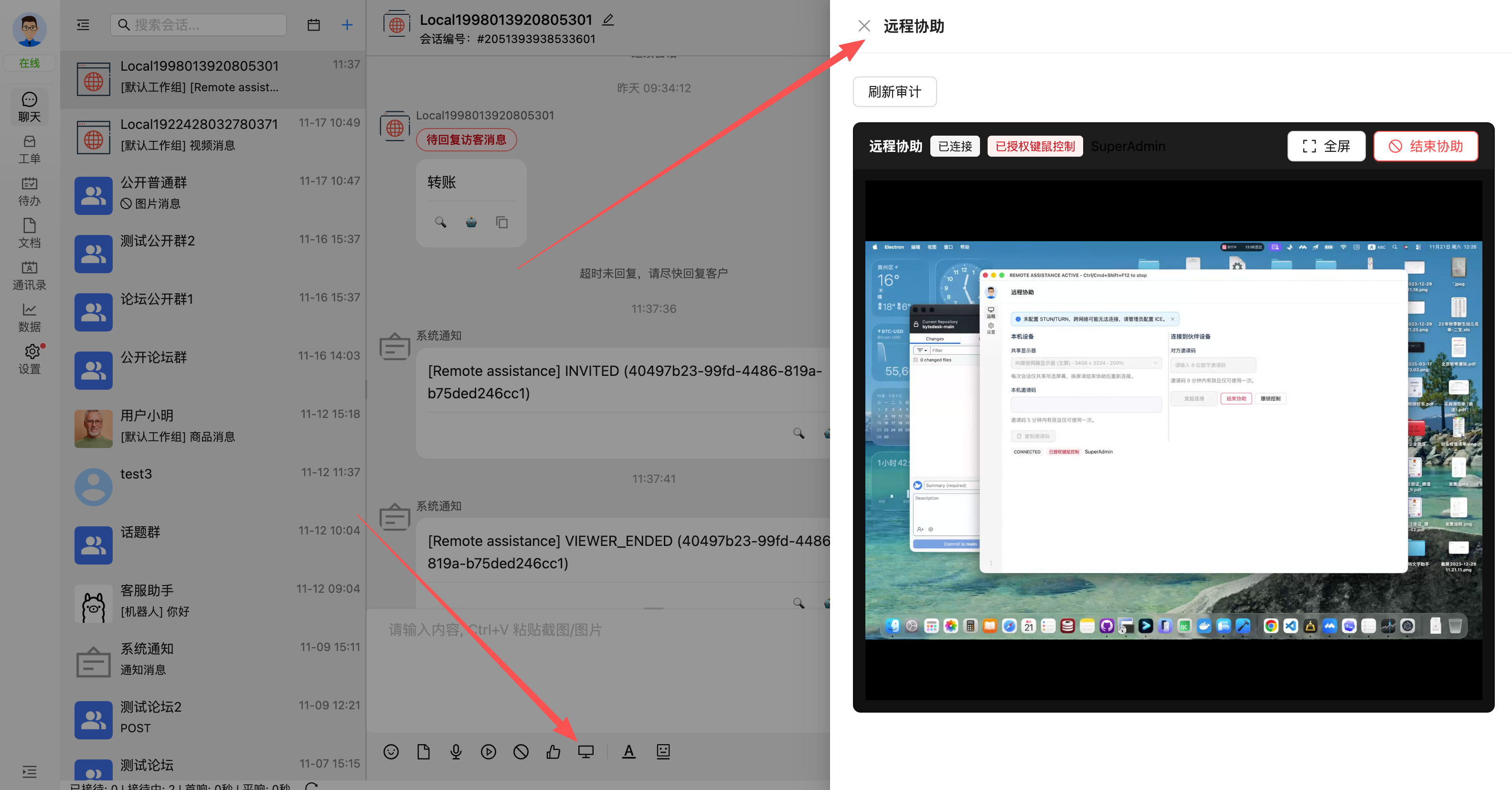
How it works: three steps, no learning curve
No complicated setup, nothing the customer needs to learn.
Step 1: the agent clicks "Remote Assist"
In the agent workspace, below the message input in the chat toolbar, there's now a Remote Assist button. Click it, and the remote assist panel opens.
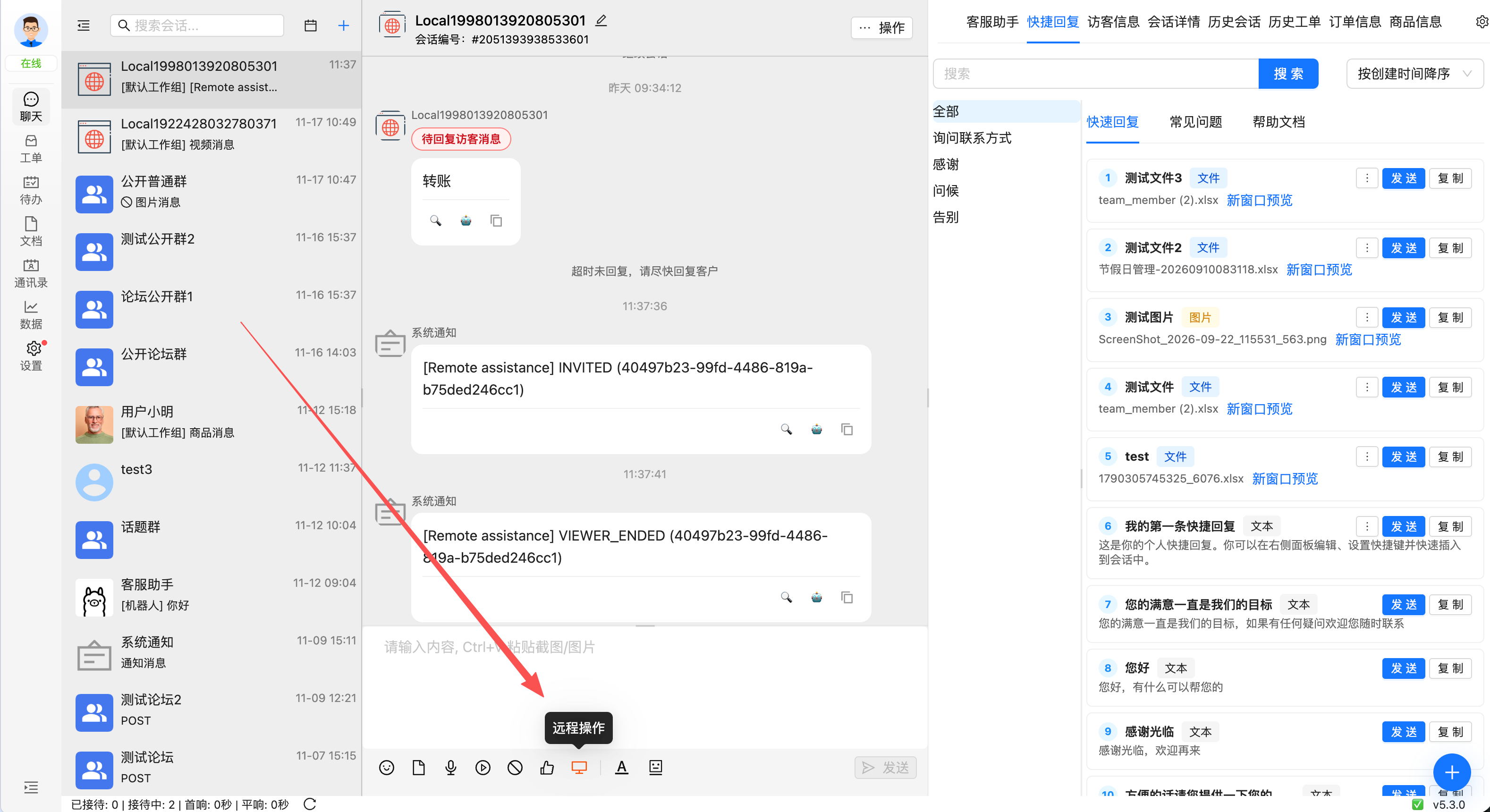
Step 2: the customer reads out a 6-digit code
The customer opens the Bytedesk remote app on their computer and sees a 6-digit invitation code, like 482913. They read it to the agent (or send it in the chat); the agent types it in and clicks Connect.
It works the other way too: the agent clicks Invite current conversation, sends the generated invitation to the customer, and the customer pastes it in to join.
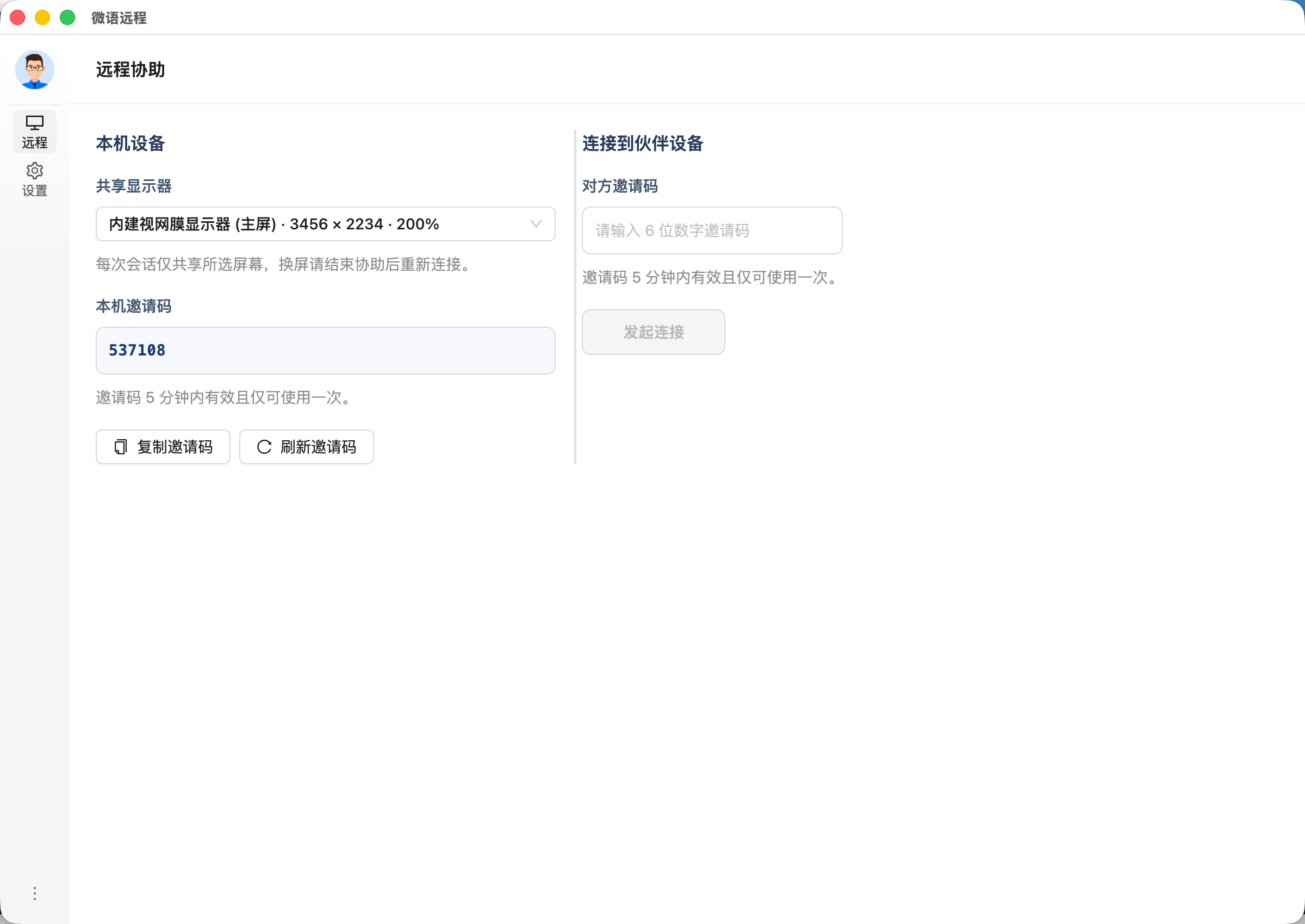
Step 3: the customer clicks "Allow" — sharing begins
When the connection request arrives, the customer's computer shows a system-level confirmation dialog that clearly states: which server is connecting, which screen will be shared, and whether keyboard and mouse control is included. Only after the customer clicks "Allow" does the agent see the screen.
Security is designed in, not promised
The biggest worry about remote assistance is trust: if I let you see my screen, will you snoop my files? If you control my computer, will you click things you shouldn't?
Bytedesk takes this seriously. You don't need to understand the technical details, but these guarantees are worth knowing:
1. Screen sharing and remote control are two separate approvals
The customer first approves seeing the screen. If the agent wants to operate it, a second confirmation dialog pops up on the customer's device — another explicit "Allow" is required. Customers can share view-only, or revoke control at any time while continuing to share.
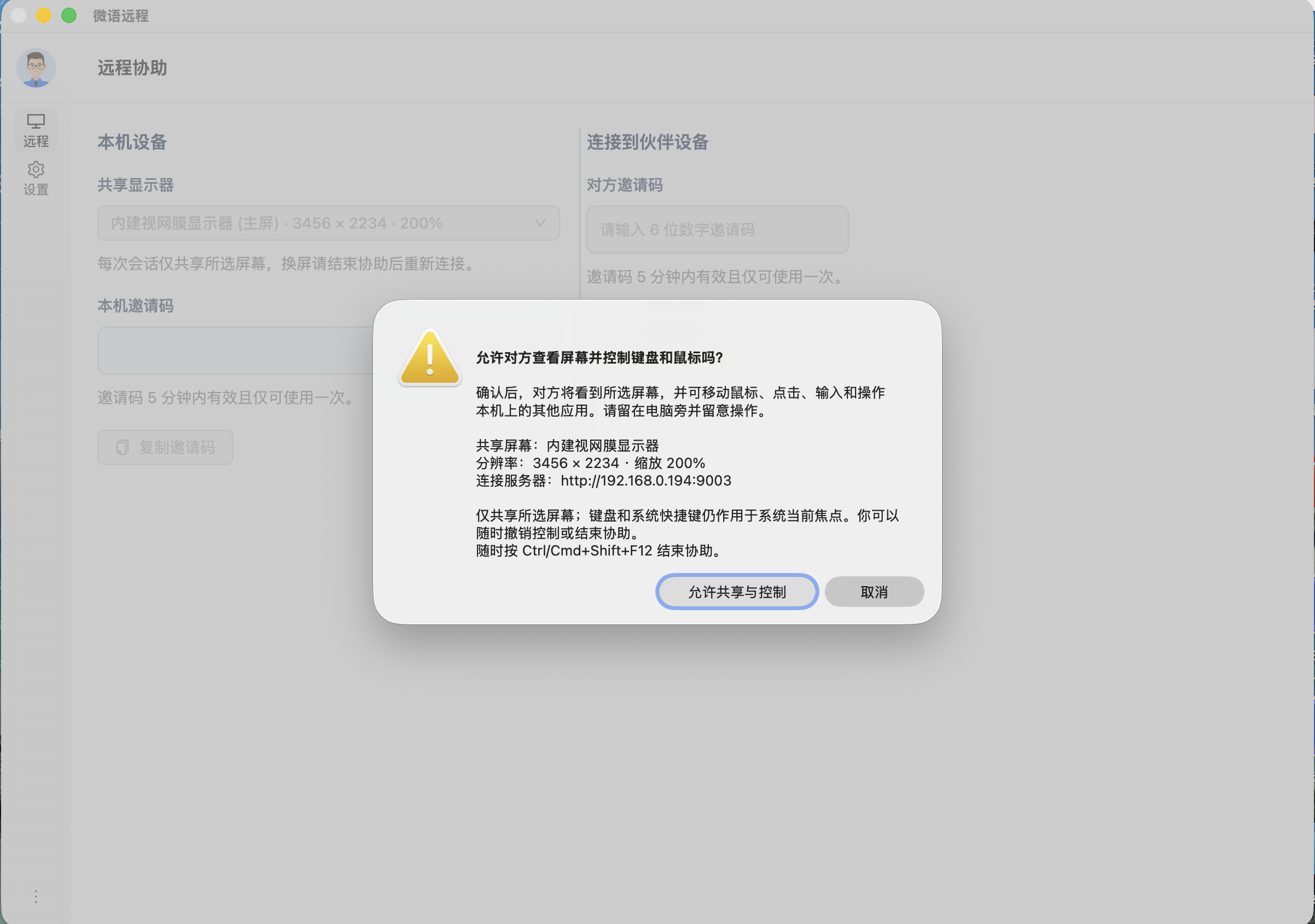
2. Invitation codes are one-time and expire in 5 minutes
A 6-digit code works exactly once and expires after five minutes. There's no risk of a code being written down and reused later.
3. The customer can hit the brakes at any moment
Pressing Ctrl+Shift+F12 (or Cmd+Shift+F12 on Mac) on the customer's computer instantly ends the session — even if the interface is frozen. Locking the screen, closing the laptop lid, or changing monitors also ends the session automatically. Nothing lingers.
4. Some things the agent can never touch
By design, system-level shortcuts (switching windows, quitting apps), password prompts, and system security dialogs are off-limits to the remote agent. Sensitive operations always stay in the customer's hands.
What can you do once connected?
After connecting, the agent gets a fullscreen view of the remote screen:
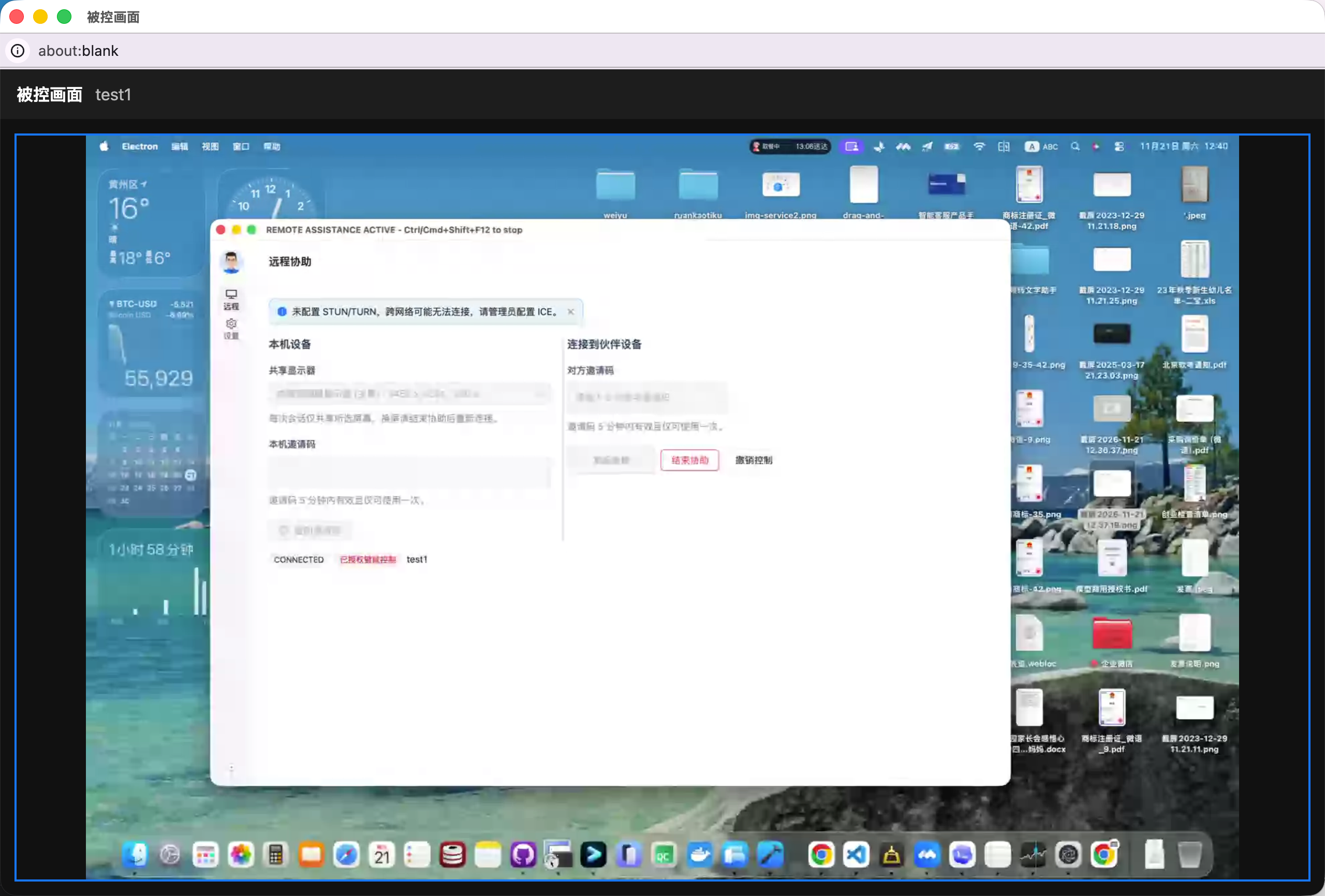
- See: watch the customer's shared display in real time, sharp and smooth
- Act (after control is approved): move the mouse, click, scroll, and type — just like using your own computer
- Fullscreen: switch to an immersive view for fine details
- End anytime: either side can end the session with one click
For agents, this means:
- No more guessing what's on screen from a verbal description
- Configuration and how-to issues can be handled directly, instead of walking customers through menus
- Customers watch every step the agent takes — they learn the method and may fix it themselves next time
Who is it for?
- Software vendors / SaaS teams: "the system won't work" becomes a five-minute remote diagnosis instead of an on-site visit
- Corporate IT support: fix employees' computer issues without leaving your desk
- E-commerce / retail: guide customers through complex checkout flows and payment issues
- Education / training: instructors watch students' operations and demonstrate software hands-on
What administrators should know
Remote Assist is off by default. An administrator enables it on the server (bytedesk.remote.enabled=true; for Docker deployments, set BYTEDESK_REMOTE_ENABLED=true in .env). When disabled, agents never see the remote button, and the backend rejects all remote requests — no "button that doesn't work" confusion.
The feature is part of the Enterprise edition, and cross-network use (different offices, traveling users) additionally requires STUN/TURN relay configuration. See the Remote Assist module docs for technical details.
Final thoughts
Remote Assist solves a very plain problem: "help me look at my computer" should not require describing things over the phone, trading screenshots, or walking over to another desk.
The customer clicks "Allow" twice; the agent can see, can act, and can be stopped at any moment. Every grant has clear boundaries, and every action leaves a record. It's an efficiency tool — and a design that takes customer trust seriously.
If remote support inefficiency is a pain point for your team, give Bytedesk a try.