Bytedesk Meet Upgrade: Unified Meetings Bring Video Conferencing, Screen Sharing, and Host Recording

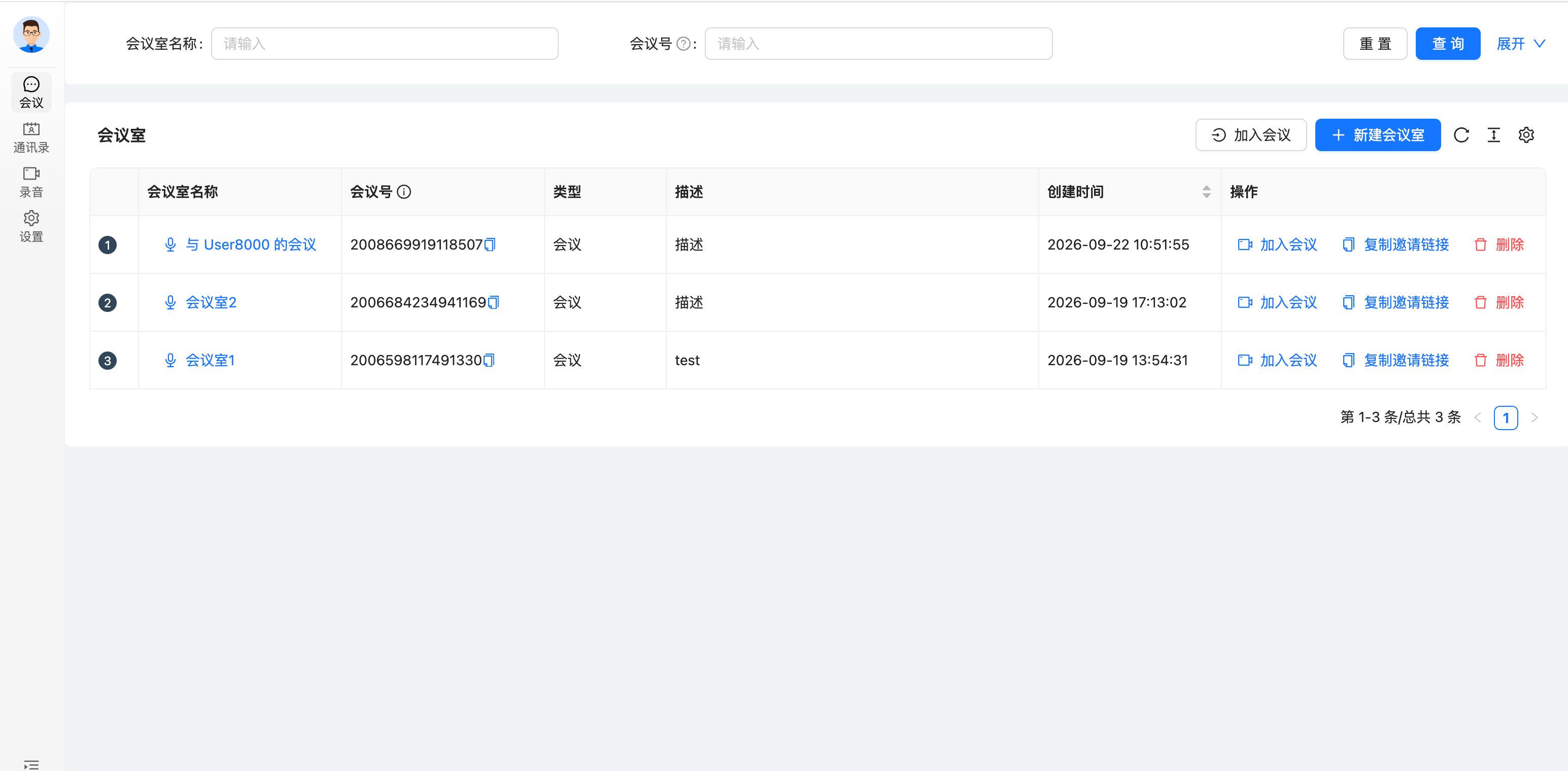
Following the 0.1.0 Preview audio conferencing release, Bytedesk Meet has completed a major unified-meeting upgrade: every meeting is now an "audio-first" visual meeting — you join with audio only by default, without touching your camera; when needed, any participant can turn on their camera or share their screen at any time; and the host can record the meeting with one click. Creating a meeting no longer involves choosing between audio and video — all capabilities are provided on demand through the toolbar at the bottom of the meeting view.
This post introduces what the upgrade includes, the interface layout, the technical architecture, and how to get started.
Online Demo
- Meeting client demo: https://www.weiyuai.cn/meet/
- Meeting admin console demo: https://www.weiyuai.cn/meetadmin
What's in This Upgrade
1. Unified Meetings: Audio First, Video on Demand
- All meetings run on the Janus VideoRoom plugin and start audio-only — entering a meeting never triggers a camera permission prompt
- No media type to pick when creating a meeting room; upgrade to video at any time during the meeting
- Up to 6 concurrent publishers (audio/video) per meeting
2. Camera: Avatar List + Small Video Windows
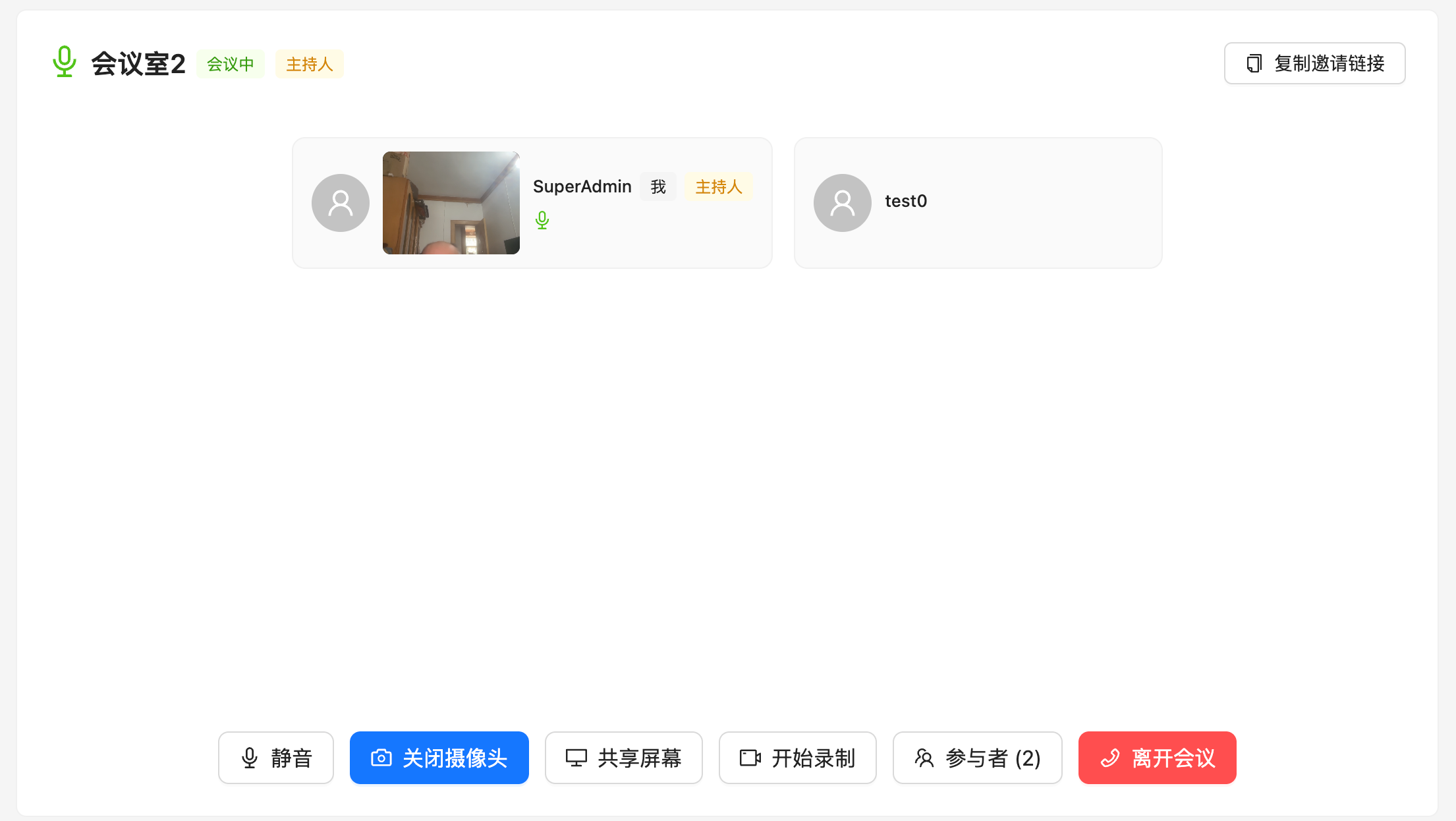
The main meeting area is no longer a large video grid, but a clean participant avatar list:
- Any participant can turn their camera on or off at any time; when on, the video appears in a small window beside their avatar, leaving the main layout untouched
- Publishers broadcast
media-state(camera / screen / none) over a data channel, so viewers can reliably tell a camera feed from a screen share - Participants joining mid-meeting also receive the correct media state via a status re-send mechanism
3. Screen Sharing: Standalone Window, Everyone Can Share
- Any participant can share their entire screen or a single window; while sharing, the screen feed replaces their camera feed
- Shared content is displayed in a standalone floating window that never crowds the main meeting area
- Closing the share window only hides it — the share keeps running; click the "sharing" badge on the sharer's avatar to reopen the window at any time
- Stop sharing via the toolbar button or the browser's native "stop sharing" bar; the camera feed is restored automatically or the video track is removed
4. Host Recording
- The record button is visible to the host (the room creator) only, and the backend enforces the same rule — uploads from non-hosts are rejected
- The host records from their own perspective via the browser's MediaRecorder: their microphone, their camera, or the screen they are sharing
- Switching video sources during recording (for example, from camera to screen share) automatically splits the recording into segments and uploads them, avoiding black screens mid-recording
- Stopping the recording — or leaving the meeting — uploads the file and creates the recording index automatically; no manual save needed
5. Meeting Recording Management
- New
bytedesk_webrtc_meeting_recordingtable plus a one-step upload endpoint: host validation, file storage, and index creation in a single request - Recording files are stored under
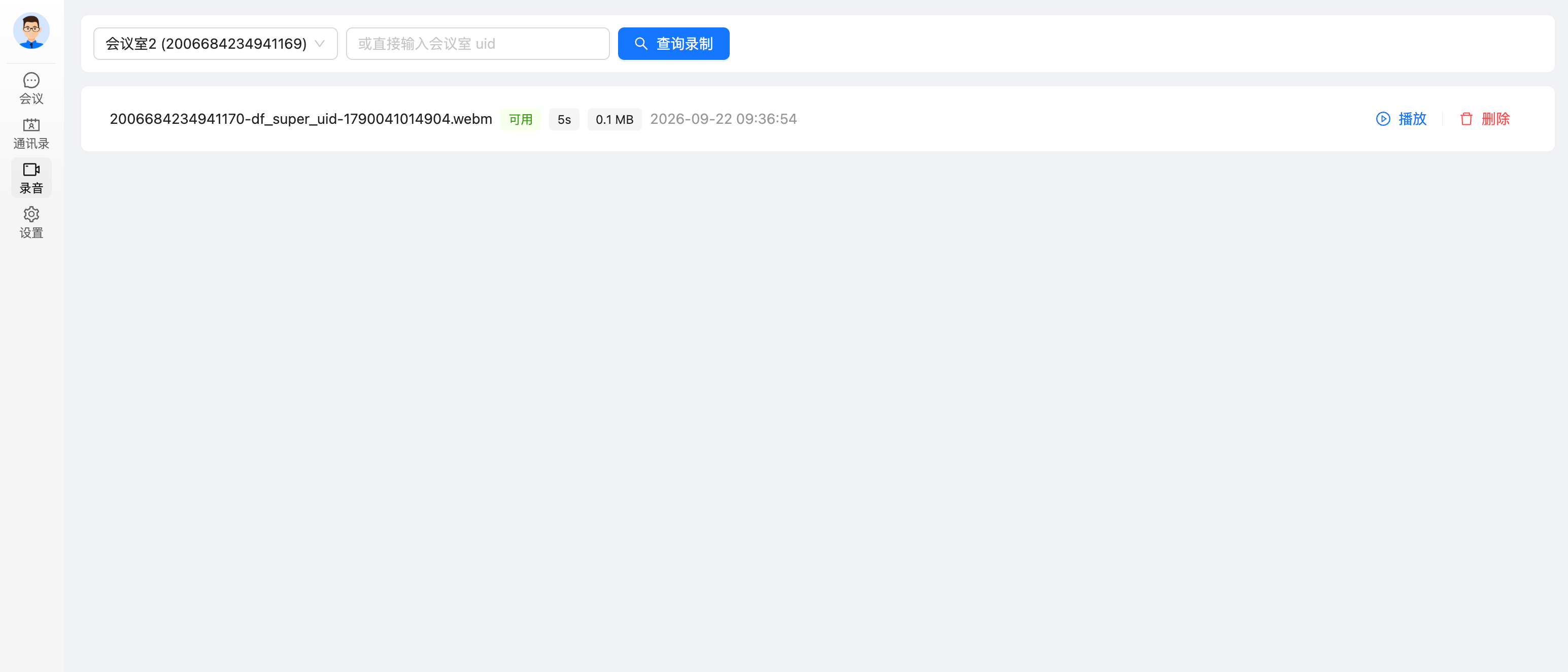
bytedesk.webrtc.meeting.record.dir(defaultuploads/webrtc-meeting-recordings), organized by year/month/day - The "Recordings" page of the meet console: list recordings by room, play/download with authorization, and delete as host; the page auto-selects your most recent room and queries automatically, so finished recordings show up right away
- A new "Meeting Recordings" page in the meetAdmin console: organization-wide paginated listing (file name / room / status / duration / size / format / recorded time) with authorized playback and download (controlled by the
MEETING_RECORDING_READrole permission) - Upload limits: only browser recording formats such as webm/mp4, with a 500MB per-file cap
6. Contacts: Start a Meeting in One Click
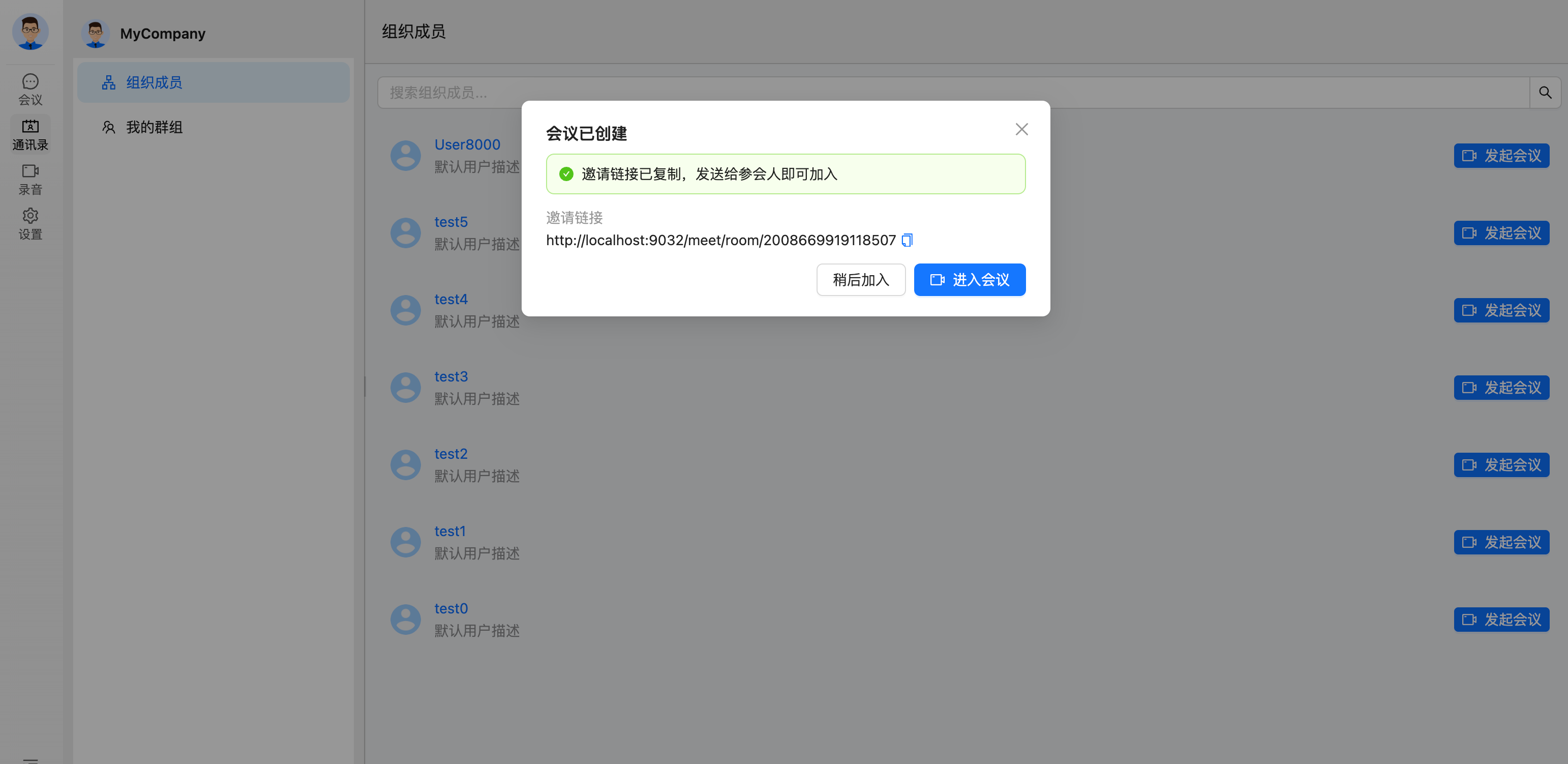
meet adds a contacts page (layout follows the desktop app: categories on the left, list on the right):
- Organization members: search, paginated loading, click a member to view details (job title / employee no. / contact info) and start a 1:1 meeting in one click
- My groups: start a meeting for a whole group in one click, with the room named after the group automatically
- Starting a meeting creates the room and copies the invite link automatically; the popup lets you jump straight into the meeting, and the link can be sent to colleagues to join
7. Core Flow Preserved
- The core flow — create a meeting, share a link, join, keep participant records — is unchanged; CDR-style attendance records keep being written automatically
- Everything from 0.1.0 stays: microphone pre-checks, insecure-context guidance, and now the same actionable hints for camera and screen sharing
8. Other Fixes
- Fixed a hidden risk where 1:1 calls enabled server-side
.mjrrecording on Janus by default: recording is now off by default and only enabled when explicitly requested - The meet frontend continues to support Simplified Chinese, Traditional Chinese, and English
Interface at a Glance
+------------------------------------------------------+
| Main meeting area (no large video by default)         |
|  [avatar+name]  [avatar+small video]  [avatar+name]   |
|                                  +------------------+ |
|                                  | Standalone share  | |
|                                  | window (floating) | |
|                                  |  XX's screen · sharing |
|                                  +------------------+ |
+------------------------------------------------------+
| Toolbar: Mic  Camera  Share  Record (host)  Participants  Link  Leave |
+------------------------------------------------------+
Technical Architecture
The browser-direct-to-Janus WebSocket architecture is unchanged; meetings moved from AudioBridge to VideoRoom, and the backend still does no signaling relay:
| Layer | Components | Notes |
|---|---|---|
| Media | Janus VideoRoom | SFU forwarding, room management, participant events; multistream subscription |
| Browser | WebRTC + janus-gateway JS SDK | Starts with audio-only publishing; replaceTracks upgrades/switches video on demand |
| Data channel | Publisher data channel | Broadcasts media-state so viewers can tell camera from screen |
| Backend | modules/webrtc + enterprise/webrtc | RoomEntity, ParticipantEntity, MeetingRecordingEntity, REST APIs |
| Frontend | frontend/apps/meet | VideoRoomClient unified meeting client, meeting view, recordings page |
A few key design decisions:
- Stable room mapping: the invite code
inviteUidmaps through a stable hash to a VideoRoom number; room creation explicitly passesrecord:false(no server-side.mjr),publishers=6, and a video bitrate of1024000 - Audio-first publishing: after joining, only the audio track is published while a recv-only video m-line is kept; turning on the camera or sharing the screen uses
replaceTracksplus renegotiation, with automatic rollback on failure - Recording boundary: this release records the host's local perspective (what the host sees and hears); server-side full-meeting recording (Janus
.mjr+janus-pp-recpost-processing) is on the roadmap - Security boundary: the recording upload endpoint derives the user from the login session and validates the host; recording file paths are confined to the storage root; playback/download requires room visibility (host / same organization / has participated)
Getting Started
1. Start the Janus Media Server
cd deploy/docker
./start.sh webrtc
2. Start the Backend
Start the starter the usual way (bytedesk.webrtc.janus.enabled=true is on by default, with the Janus WS URL and ICE servers configured).
3. Start the meet Frontend
cd frontend
pnpm install
turbo dev --filter=meet
4. Start Your First Video Meeting
- Sign in to meet, create a meeting room, and copy the invite link to a colleague (or pick a colleague or group in Contacts to start a meeting in one click)
- They open the link, sign in, join the meeting, and allow microphone access — the call begins (audio-only by default; the camera is never requested)
- Use the bottom toolbar to turn on the camera or share the screen whenever needed
- The host can click "Start recording"; after stopping, review it on the "Recordings" page of the meet console

Tip: microphone, camera, and screen sharing all require a secure context (HTTPS or localhost). On LAN IPs over plain HTTP, meet shows clear guidance; for production, serve HTTPS + WSS through an nginx reverse proxy.
Roadmap
- Server-side full-meeting recording (Janus server-side mixing + post-processing)
- Meeting passwords and host controls (mute all, remove participants)
- Scheduled and instant meetings
- Picture-in-picture for screen share plus camera
- Real-time attendance statistics, mobile apps
Related Links
- Bytedesk website: https://www.weiyuai.cn
- Bytedesk on GitHub: https://github.com/Bytedesk/bytedesk
- Issue tracker: https://github.com/Bytedesk/bytedesk/issues