Bytedesk Meet
Bytedesk Meet is the open-source conferencing system of the Bytedesk ecosystem: meetings run on your own servers, and your data never passes through a third party. Sign in with your existing company Bytedesk account — no separate registration — and open the browser to start a meeting, with nothing to install.
Meetings are unified and audio-first: create a meeting room, share an invite link, and join with audio only by default — entering a meeting never triggers a camera prompt. From there, anyone can turn on their camera or share their screen at any time, the host can record the meeting, and attendance records are kept automatically.
Bytedesk Meet is under continuous development and ships in stages. Unified conferencing (audio-first, on-demand camera and screen sharing) and host-side recording are available now; server-side full-meeting recording and host controls are on the roadmap.
🧪 Online Demo
- Meeting client demo: https://www.weiyuai.cn/meet/
- Meeting admin console demo: https://www.weiyuai.cn/meetadmin
✨ Main Features
1. Meeting Room Management
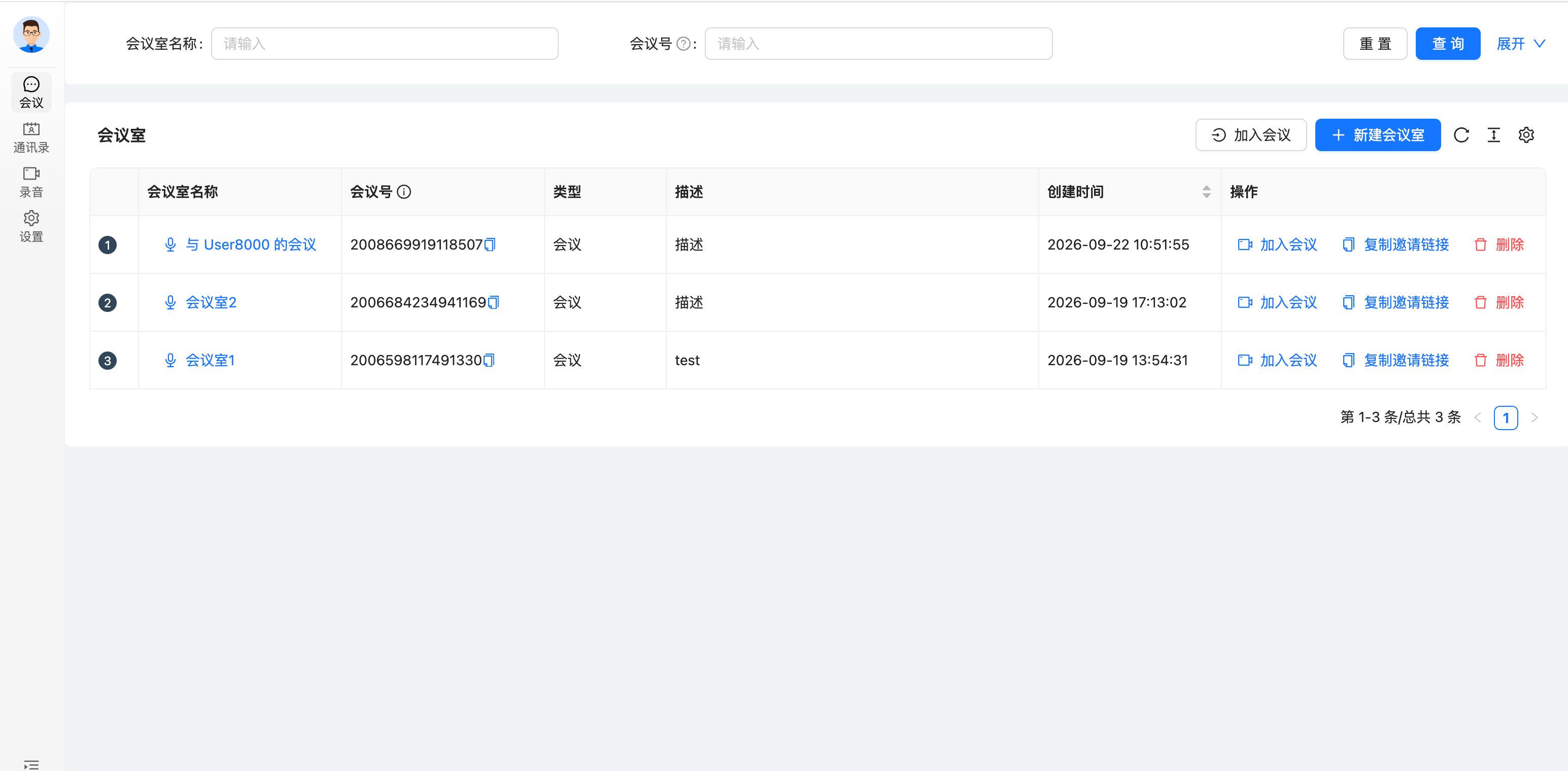
- Every meeting room has a name, room code, type, and description
- Your rooms are listed clearly on the home page; creating or deleting one takes a single click
- The list only shows rooms you created or joined — no clutter from other people's meetings
2. One-Click Invite Links
- Every meeting room has its own invite link — just copy and send it
- Colleagues open the link, sign in with their Bytedesk account, and join right away
- Everyone's nickname appears in the room automatically; no need to type a name

3. Unified Conferencing: Audio First, Video on Demand
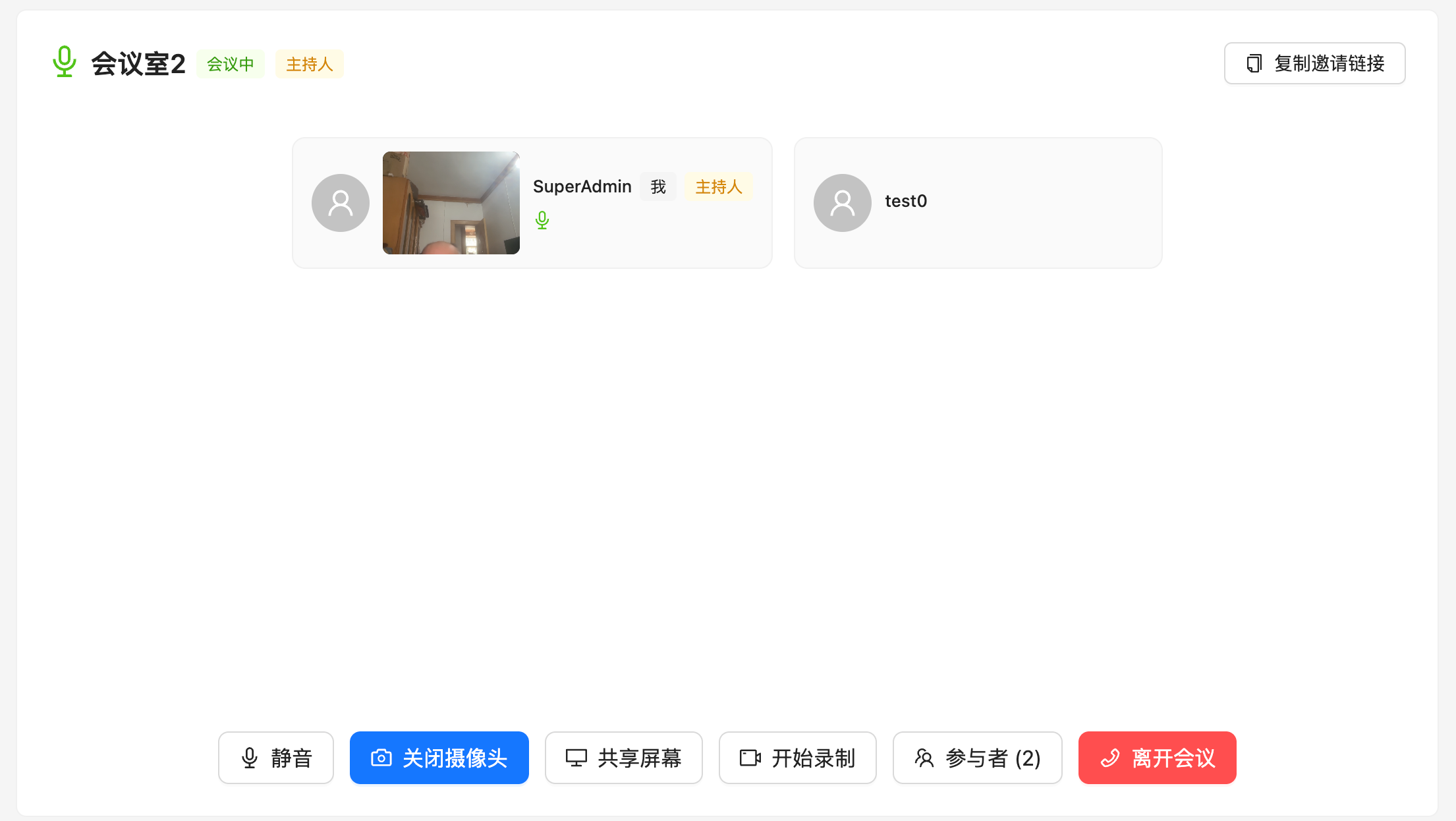
- Join or leave a meeting directly in the browser, with nothing to install; meetings start audio-only, so entering never triggers a camera prompt
- One-click mute / unmute
- A live participant list shows who is in the meeting — and who is speaking — at a glance
- Camera on demand: anyone can turn their camera on or off at any time; other participants see it as a small video window beside the avatar, never as a disruptive full-size grid
- Screen sharing: anyone can share their screen or a window; the shared content opens in a standalone floating window, and closing that window only hides it — the share keeps running
- Up to 24 concurrent publishers per meeting by default, with 6/12/24 capacity options when creating a meeting (extensible)
4. Host Recording
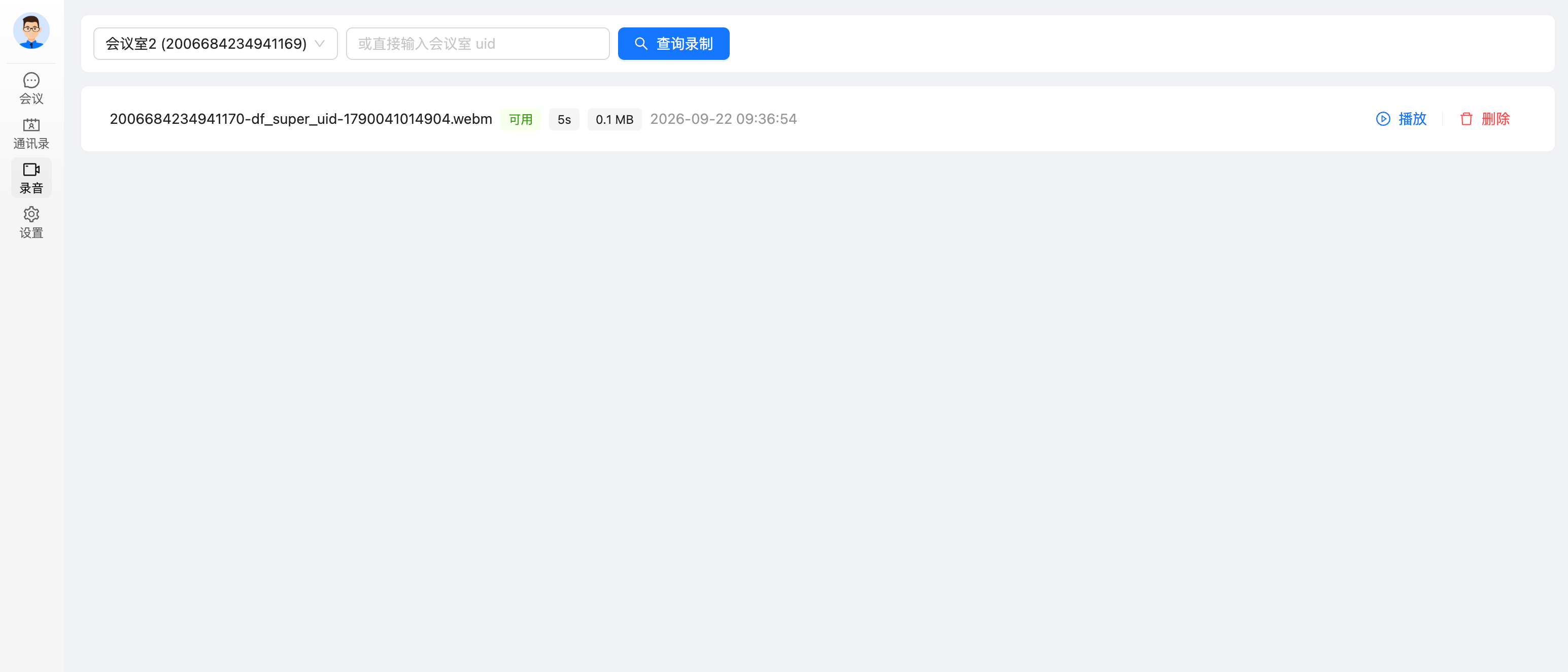
- Only the meeting host (the room creator) sees the record button — the backend enforces the same rule
- The host records from their own perspective via the browser (MediaRecorder): microphone, camera, or the screen being shared
- Switching video sources during recording splits the file into segments automatically; stopping the recording or leaving the meeting uploads and indexes the file automatically
- Recordings can be listed, played back, and deleted on the Recordings page of the meet console; administrators can also browse, play, and download recordings organization-wide on the Recordings page of the meetAdmin console
5. Attendance Records
Every join automatically creates a record — no manual sign-in:
- Who attended the meeting, when they joined, when they left, and how long they stayed
- Whether they were the meeting host
- Records survive unexpected disconnects; the system completes them automatically
These records support attendance statistics and meeting reviews, and administrators can look them up in the admin console.
6. Contacts: Start a Meeting in One Click
The contacts page (categories on the left, list on the right) makes starting meetings effortless:
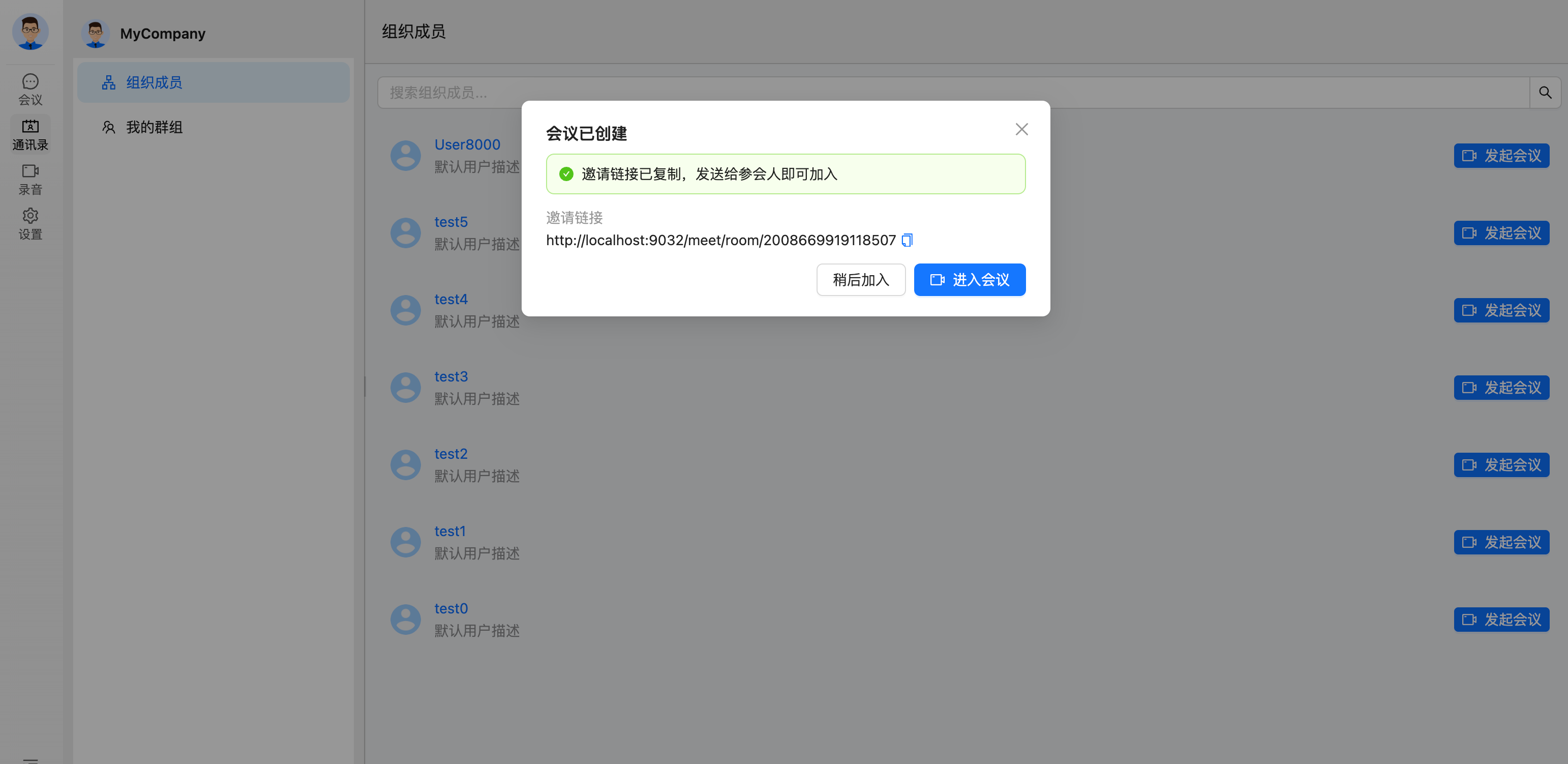
- Organization members: search and browse members, click one to view details (job title, employee no., contact info) and start a 1:1 meeting in one click
- My groups: start a meeting for a whole group in one click; the room is named after the group automatically
- Starting a meeting creates the room and copies the invite link automatically — jump straight in, or send the link to colleagues
7. meetAdmin Admin Console
A dedicated admin console ships alongside:
- Meeting room management: create, edit, and delete meeting rooms
- Attendance queries: view attendance details for each meeting room
- Recording management: browse, play, and download meeting recordings organization-wide (role-controlled)
- Permission control: decide by role who can manage rooms and who can view attendance records
- Service monitoring: administrators can check how the meeting service is running in real time
8. Friendly Device Guidance
- Before joining, the app checks whether your microphone is ready
- If permission is denied, no microphone is found, or the browser is not supported, you get clear hints and step-by-step fixes
- Camera and screen sharing get the same actionable guidance (both require HTTPS or localhost)
9. Multi-Language Support
The meeting client and the admin console both support Simplified Chinese, Traditional Chinese, and English.
💡 Why Bytedesk Meet
- Open source, self-hosted: the system runs on your own servers, so your data stays with you and your privacy stays under your control
- Nothing to install: meet in the browser; colleagues join straight from the invite link
- One account: reuse your company's Bytedesk account — no extra sign-up
- Auditable: attendance records are kept automatically; no manual roll call
- Safe to share: invite links only work after signing in, and management features are granted by role
🚀 Quick Start
Option 1: Try the online demo
- Open the meeting client demo and sign in
- Create a meeting room and copy its invite link to a colleague
- They open the link, sign in, click "Join", allow microphone access — and the call begins (audio-only by default; turn on the camera or share a screen from the toolbar whenever needed)
Option 2: Deploy on your own server (administrators)
To run Bytedesk Meet on your own server, follow the project deployment guide — Docker gets you up and running quickly.
Browsers allow microphone, camera, and screen sharing only over HTTPS or on localhost. If a device cannot be turned on, follow the on-screen guidance; for formal use, serve the app over HTTPS.
🗺️ Roadmap
- Server-side full-meeting recording (mixed audio/video via Janus, beyond the current host-side local recording)
- Scheduled and instant meetings
- Meeting passwords and host controls (mute all, remove participants)
- Picture-in-picture for screen share plus camera
- Real-time attendance statistics
- Mobile apps for phones and tablets
🔗 Related Links
- Meeting client demo: https://www.weiyuai.cn/meet/
- Meeting admin console demo: https://www.weiyuai.cn/meetadmin
- Bytedesk website: https://www.weiyuai.cn
- Bytedesk on GitHub: https://github.com/Bytedesk/bytedesk
- Issue tracker: https://github.com/Bytedesk/bytedesk/issues